
How to Change Your Discord Theme (Dark, Light & Custom Colors)
By the DiscordFonts team · · 6 min read
 Discord Font Generator
Discord looks the same for everyone until you change it. You might want a darker screen for late-night gaming, a brighter one for daytime, or something more colorful. Whatever the reason, you can change your Discord theme in a few seconds on any device.
This guide covers every theme Discord offers, how to switch on desktop and mobile, how to make Discord follow your device's dark mode, and how custom color themes work with Nitro.
Quick answer
To change your Discord theme on PC, open User Settings (the gear icon next to your name), go to Appearance, and pick Light, Ash, Dark, Onyx or Sync with computer. On mobile, tap your profile picture, open Settings, then Appearance, and choose your theme.
All Discord Themes Explained
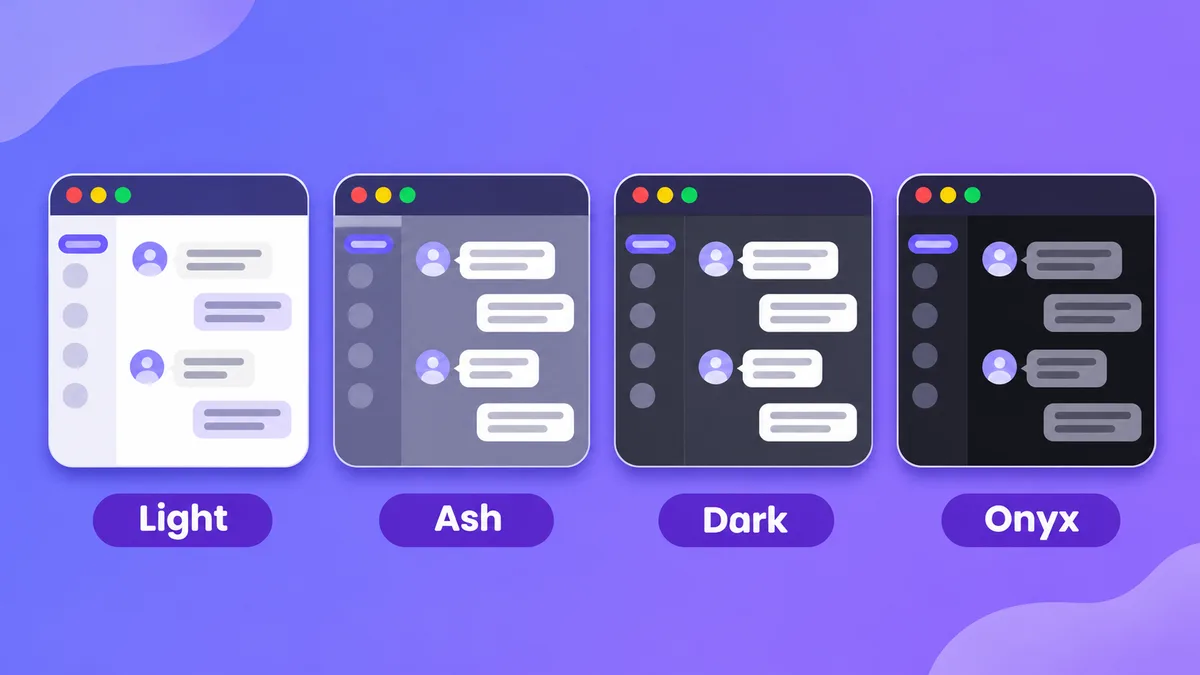
Every Discord user gets four themes for free. Nitro subscribers get extra colorful themes on top of these.
 Change your font on Discord
| Theme | What it looks like | Best for |
|---|---|---|
| Light | White background, dark gray text. Optional Dark Sidebar. | Bright rooms, daytime use |
| Ash | Mid-gray background, white text. This is the classic Discord dark theme. | People who find Dark too heavy |
| Dark | Dark gray background, white text | Everyday use, most people |
| Onyx | Near-black and gray, a true AMOLED-style dark mode | OLED screens, night use, saving battery |
| Sync with computer | Follows your system's light or dark mode (called Automatic on some mobile versions) | People who switch modes during the day |
Which one should you pick? If you're not sure, start with Dark. It's easy on the eyes and it's what most people picture when they think of Discord. If you have an OLED monitor or phone, try Onyx. True black pixels on OLED screens use almost no power, so the deeper blacks can save battery.
How to Change Your Discord Theme on PC (Windows, Mac & Browser)
The steps are the same in the desktop app and in the browser version at discord.com.
- Open User Settings. Click the gear icon at the bottom-left, next to your username and avatar.
- Go to Appearance. In the left menu, scroll down to the App Settings section and click Appearance.
- Choose a theme. At the top of the page, click Light, Ash, Dark, Onyx or Sync with computer.
- Close settings. Press Esc or click the X. The new theme is applied straight away, with no restart needed.
Tip: If you choose Light, a Dark Sidebar toggle appears. Turn it on to keep the server and channel list dark while the chat area stays light.
How to Change Your Discord Theme on Mobile (Android & iPhone)
- Open the Discord app and tap your profile picture (the You tab) in the bottom-right corner.
- Tap the gear icon to open Settings.
- Scroll down and tap Appearance.
- Pick Light, Ash, Dark, Onyx or the automatic option. The change is instant.
Shortcut: On recent versions you can double-tap the You tab icon to jump straight to Settings.
Don't see Ash or Onyx? Discord added all four desktop themes to mobile in its mobile visual refresh. If your app still shows only Light, Dark, Midnight and Automatic, update Discord from the Play Store or App Store. On older versions, Midnight is the mobile equivalent of Onyx.
How to Make Discord Follow Your Device's Dark Mode
If your phone or computer switches between light and dark mode on a schedule, Discord can switch with it.
- On PC: In Appearance, choose Sync with computer. When Windows or macOS is in dark mode, Discord goes dark too.
- Choose which Light and which Dark theme Discord uses: Turn on Same as Device Theme in Appearance. You can then decide, for example, that Discord uses Onyx when your device is dark and Light when it's light, instead of the default pair. This setting works on mobile and desktop and takes priority over syncing across devices.
Sync Your Theme Across All Devices (or Don't)
By default, Discord can sync your theme across desktop, mobile and browser, so changing it in one place changes it everywhere. Want Onyx on your phone and Light on your laptop? Turn off the sync across clients option in Appearance on each device, then set each one separately.
How to Use Custom Color Themes (Nitro)
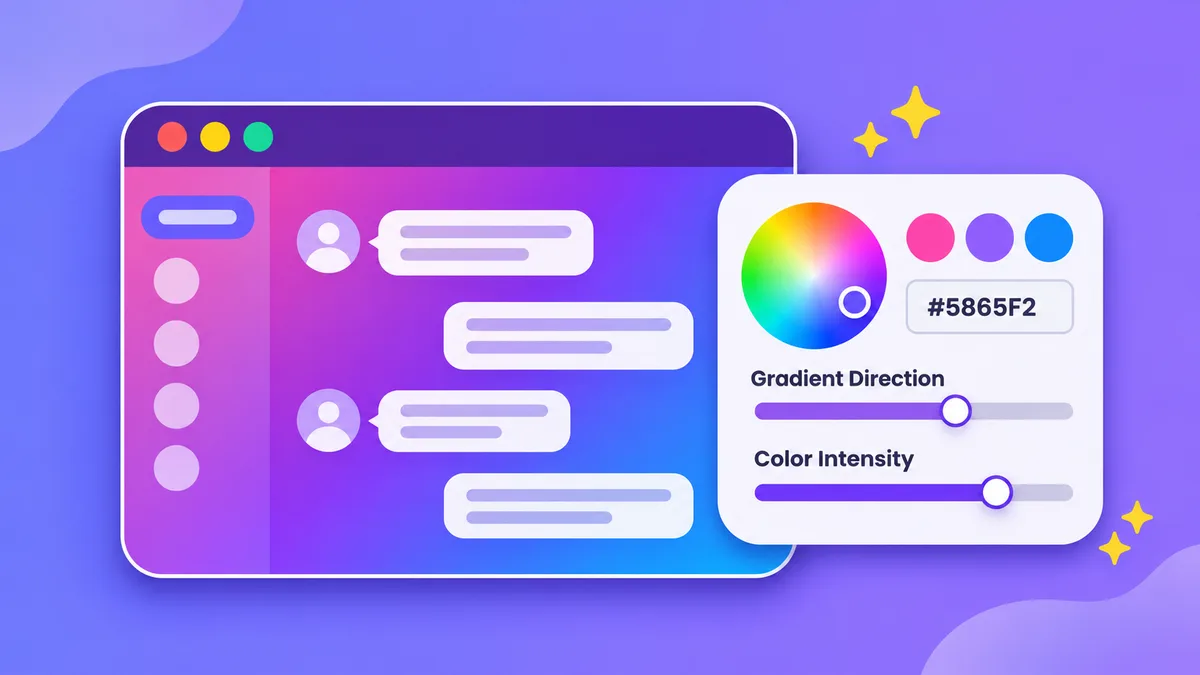
This is where the custom colors part of this guide comes in. Discord Nitro subscribers can use colorful gradient themes across all platforms, on top of the four free ones.
 Colored text in Discord
To use a preset color theme
- Go to User Settings > Appearance.
- Scroll to the color themes under the default themes.
- Click any color theme to apply it.
To build your own custom theme
- In Appearance, choose the custom theme option.
- Pick your colors with the color picker, or type an exact hex code (for example #5865F2 for Discord blurple).
- Click Add Color to add more colors to the gradient.
- Use the Gradient Direction slider to change how the colors flow across the app.
- Use the Color Intensity slider to make the colors brighter or more subtle.
Not on Nitro? You can still personalize how your profile looks to others without paying, for example with a stylish name. Try our Discord Font Generator to give your username, nickname and bio a unique look.
Extra Appearance Settings Worth Changing
The theme is only one part of how Discord looks. While you're in settings, check these too:
- Contrast and saturation: In Accessibility settings you can fine-tune contrast and color saturation. This helps if text is hard to read on your theme.
- UI Density: In Appearance, choose how compact or spacious the interface feels.
- Message Display: Switch between Cozy (avatars and names shown) and Compact (more messages on screen).
- Chat font scaling and zoom: Make text bigger or smaller without changing your theme.
Profile Theme vs App Theme: What's the Difference?
People often mix these up:
- App theme changes how Discord looks to you. It's everything in this guide.
- Profile theme (Nitro only) changes the colors of your profile pop-up, the card other people see when they click your name. You set a Primary color for the background gradient and an Accent color for the border, in your Profile settings.
Changing one doesn't change the other.
Can You Use BetterDiscord or Custom CSS Themes?
You'll find lots of tutorials for BetterDiscord, Vencord and other client mods that add fully custom backgrounds and CSS themes. They work, but modifying the Discord client goes against Discord's Terms of Service, so using them puts your account at risk. If you want custom colors, Nitro themes are the official and safe way to get them.
Discord Theme Not Changing? Quick Fixes
- Theme switched back by itself: Discord sometimes resets appearance settings after big updates. Go back to Appearance and pick your theme again.
- Theme is different on your phone: Not every option has the same name on every platform. On older app versions, for example, Ash shows as Dark and Onyx shows as Midnight. Update the app, or turn off theme syncing and set each device yourself.
- One server looks different: Some servers can apply their own color theme through Discord's Server Themes feature, which can change how that server looks for you.
- Sync with computer isn't working: Check that your operating system's dark mode setting is actually on, then restart Discord.
- Nitro themes missing: Make sure your Nitro subscription is active and your app is up to date.
Frequently Asked Questions
What is the default Discord theme?
Most people see a dark theme by default. You can switch to Light, Ash, Dark or Onyx at any time in User Settings > Appearance.
What's the darkest Discord theme?
Onyx. It's a near-black, AMOLED-style theme and it's free for everyone.
Is Discord dark mode free?
Yes. Light, Ash, Dark and Onyx are all free. Only the colorful gradient and custom color themes need Nitro.
Can I change my Discord theme without Nitro?
Yes, between the four default themes and Sync with computer. Custom colors need Nitro.
Do other people see my Discord theme?
No. Your app theme is only visible to you. Others only see your profile theme (Nitro) and your name, avatar and bio.
How do I get Discord light mode on mobile?
Tap your profile picture > Settings > Appearance > Light.
Final Thoughts
Changing your Discord theme takes about ten seconds. Free users get four solid options, from bright Light to near-black Onyx, and the device-sync setting can switch between them for you automatically. If you want Discord to look completely different, Nitro's custom gradient themes let you pick any colors you like.
Want to go further than the theme? Learn how to change your font on Discord or how to write colored text in Discord so your messages stand out as much as your setup.